Freitag, 22. April 2016

How to limit chache size in Opera and Chrome Browser and specify Cache Directory?

How to limit chache size in Opera and Chrome Browser?

Goto properties of Chrome / Opera program icon (right click):


Then edit line command on 'target' as described below:


"--disk-cache-size=50000000"

e.g. "C:\Program Files (x86)\Opera\launcher.exe" --disk-cache-size=50000000

That should limit your cache to 50MB and you can alter the size to your wishes

or .... "...chrome.exe" --disk-cache-size=50000000

Also the directory can be specified:

"...chrome.exe" --disk-cache-dir="CACHE_DIR" --disk-cache-size=N


Mittwoch, 17. Februar 2016

Easy Outlook E-Mail Migration (PST or Online) to GMAIL / Google Mail

How to Import (local) E-Mails from Outlook to Gmail

There are lots of different ways which should work:

  1. With Thunderbird:
    1. Define MS Outlook as default E-Mail program  (path (in German): Systemsteuerung\Programme\Standardprogramme\Standardprogramme festlegen)
    2. Download Thunderbird and add Gmail as IMAP account and goto Extras / Import and select 'Outlook' to import.
    3. For me 'Outlook' was 'greyed' and hence it didn't work


  2. With Google Apps Migration for Microsoft Outlook Tool
    1. Actually it's intended for Google Apps (Google for Business) but it works also great for personal accounts.
    2. Goto https://tools.google.com/dlpage/outlookmigration
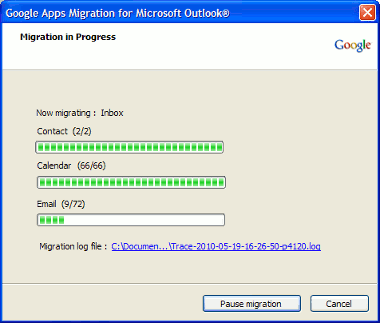
    3. Download the migration tool (on the right side), start it and follow the instructions, which are very easy and in my case it really worked great. You are able to chose some basic options and also are able to include contacts and calendar to migrate.
    4. Only downside is that it's very slow. In my case it took about 1 hour (!!!) for each 1.000 e-mails, hence be careful to delete spam, trash and other unneeded e-mails before migrating.


  3. Some people have been successful with adding their IMAP Gmail Acccount to the existing Outlook installation and than moved the e-mails by drag/drop between the folders (local to Gmail / Imap), but in my case Outlook (2003) was not able to access GMAIL by IMAP.
  4. Maybe there are other ways but there are a lot of problems because:
    1. You can't import an Outlook PST file to Thunderbird or Gmail directly
    2. You can import from Outlook Express to Thunderbird, but also Outlook Express doesn't accept PST as import
Good luck!

Dienstag, 9. Februar 2016

How to get a Moga Controller working on a PC with Windows?

Moga Serial to Windows Interface


How to get a Moga Controller working on a PC with Windows e.g. instead of an XBOX 360 Controller with USB dongle?

Download the latest build of MogaSerial MogaSerial-v150.zip - x86 for Windows 7, 8, and 10

https://github.com/Zel-os/MogaSerial/releases/download/v1.5.1/MogaSerial-v151.zip

If direct link is not working any more ... goto https://github.com/Zel-os/MogaSerial  and download it from this site (Download section ...)
  • Extract ZIP to temp directory
  • Install driver using "ScpDriver.exe" in extracted ...."\MogaSerial-v150\ScpDriver\" directory
  • Start physical Moga Controller and set Switch to 'A'


  • Press "WIN" key and type 'blue' then click on the Bluetooth setting and start pairing the MOGA controller. If done, close the "Bluetooth Settings"
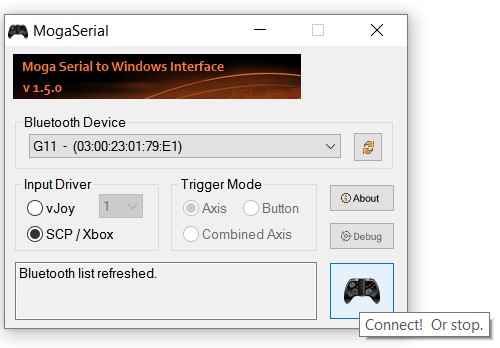
  • Start MogaSerial.exe from extracted "\MogaSerial-v150\" directory and a small GUI will be shown.
  • Scan for Bluetooth Devices:


  • Select you device from pulldown menu
  • Select SCP / Xbox for standard usage:

  • Click Connect (bottom right)


  • If OK, confirmation message will be shown

  • Have FUN !!!!


Donnerstag, 4. Februar 2016

Windows 10 File Explorer Advanced Search Tips


http://windows.microsoft.com/en-us/windows7/advanced-tips-for-searching-in-windows#section_3:


dvanced tips for searching in Windows

Searching in Windows 7 can be as simple as typing a few letters in the search box, but there are also advanced searching techniques that you can use. You don't have to know these techniques to search for your files, but they can be helpful depending on where you're searching and what you're searching for.

Tip

  • If you know which file type it is, you can just enter the file extension ("JPG" for example) in the search box. To learn more about basic searches in Windows, see Find a file or folder.

Adding operators

One way to refine a search is to use the operators AND, OR, and NOT. When you use these operators, you need to type them in all capital letters.
OperatorExampleUse this to
AND
tropical AND island
Find files that contain both of the words "tropical" and "island" (even if those words are in different places in the file). In the case of a simple text search, this gives the same results as typing "tropical island."
NOT
tropical NOT island
Find files that contain the word "tropical," but not "island."
OR
tropical OR island
Find files that contain either of the words "tropical" or "island."

Adding search filters

Search filters are a new feature in Windows 7 that make searching for files by their properties (such as by author or by file size) much easier.

To add a search filter to your search

  1. Open the folder, library, or drive that you want to search.
  2. Click in the search box, and then click a search filter (for example, Date taken: in the Pictures library).
  3. Click one of the available options. (For example, if you clicked Date taken:, choose a date or a date range.)
    Picture of the "Date taken" search filter in the search box
    The "Date taken" search filter
You can add multiple search filters to a search, or even mix search filters with regular search terms to further refine your search.
Picture of the "Tags" search filter menu in the search box
You can use two search filters to search for a picture tagged with "family" that was taken a long time ago.
Depending on where you're searching, only certain search filters are available. For example, if you're searching the Documents library, you'll see different search filters than you would in the Pictures library. You can't specify which search filters you'll see, but you can change the type of file that a library is optimized for. This will, in turn, change which search filters are available when searching that library. To learn how to do this, see Customize a library.

Using keywords to refine a search

If you want to filter on a property that doesn't appear when you click in the search box, you can use special keywords. This typically involves typing a property name followed by a colon, sometimes an operator, and then a value. The keywords aren't case sensitive.
Example search termUse this to find
System.FileName:~<"notes"
Files whose names begin with "notes." The ~< means "begins with."
System.FileName:="quarterly report"
Files named "quarterly report." The = means "matches exactly."
System.FileName:~="pro"
Files whose names contain the word "pro" or the characters pro as part of another word (such as "process" or "procedure"). The ~= means "contains."
System.Kind:<>picture
Files that aren't pictures. The <> means "is not."
System.DateModified:05/25/2010
Files that were modified on that date. You can also type "System.DateModified:2010" to find files changed at any time during that year.
System.Author:~!"herb"
Files whose authors don't have "herb" in their name. The ~! means "doesn't contain."
System.Keywords:"sunset"
Files that are tagged with the word sunset.
System.Size:<1mb p="">
Files that are less than 1 MB in size.
System.Size:>1mb
Files that are more than 1 MB in size.

Note

  • You can use a question mark (?) as a wildcard for a single character and an asterisk (*) as a wildcard for any number of characters.
You can also use the operators AND, OR, and NOT to combine search keywords. (Note how the use of parentheses can change the effect of a search term.)
Example search termUse this to find
System.Author:Charlie AND Herb
Files that are authored by Charlie as well as any files that include Herb in the file name or in any file property.
System.Author:Charlie AND System.DateModified:>2009
Find only files that are authored by Charlie after 2009.
System.Author:(Charl* AND Herb)
Files that have either Charles and Herb or Charlie and Herb listed as authors.
System.Author:"Charlie Herb"
Files that are authored by someone with exactly this name.

Using natural language search

You can turn on Natural language search to perform searches in a simpler way, without using colons and without the need to enter AND and OR in capital letters. For example, compare these two searches:
Without natural languageWith natural language
System.Music.Artist:(Beethoven OR Mozart)
music Beethoven or Mozart
System.Kind:document System.Author:(Charlie AND Herb)
documents Charlie and Herb

To turn on natural language search

  1. Open Folder Options by clicking the Start button Picture of the Start button, clicking Control Panel, clicking Appearance and Personalization, and then clicking Folder Options.
  2. Click the Search tab.
  3. Select the Use natural language search check box.
Even with natural language search turned on, you can continue to use the search box in exactly the same way. If you want to use operators or search keywords, you can. The difference is that you can also enter searches using a less formal method. Here are some examples:
  • e‑mail today
  • documents 2011
  • author Susan
  • pictures vacation

Note

  • When you turn on natural language search, some searches might give more results than you expect. For example, if you search for "e‑mail today" you will see all messages sent today as well as any messages with the word "today" in the contents.

Sonntag, 17. Januar 2016

How to share an Animated GIF on WhatsApp using Google Photos?

How to share an Animated GIF on WhatsApp?


  1. Prepare your GIF on the PC and drag it from the file-explorer to the chrome window with URL https://photos.google.com/
  2. Now gow to your mobile phone and open your Google Photos App. Click on the Animated GIF and then click on the Share-Icon and then select WhatsApp
Hope it works also for you


Dienstag, 5. Januar 2016

Free reliable Online Exif Viewer: http://exif-viewer.com/

Free reliable Online Exif Viewer: http://exif-viewer.com/

Or maybe even better here:  http://www.shuttercounter.com/  (shows even shutter count)!

Enjoy !!!


Samstag, 21. November 2015

7 absolute NO-GO's on the new LG V10 after 2 Weeks of Usage

After almost two weeks with the new LG V10 I found some pros ....

  • removal battery
  • micro SD card slot
  • MIL-STD-810 resistance rating
  • modern and unique shape 
  • screen capture / edit / share (one of the biggest plus for me)
  • overall great camera
  • works mostly very smooth with 4GB of RAM

but even more cons:

  • Still not same brightness level of screen as other premium cellphones
  • no water resistance at all (makes the MIL-STD-810 resistance rating somehow obsolete). E.g. Samsung Galaxy S6 Edge is way better protected against water
  • battery with 3000 mAh too weak for the size and weight
  • device is very heavy and bulkier than competitors
  • no wireless charging
  • lots of overexposed photos. Especially all green (wood, grass) looks way to bright and leaves some cheap photo impression. Problem existed already on LG G4, but no solution in sight
  • auto brightness not adjustable and too dark
  • kept old CPU from LG G4
  • phone sometimes does not wake up again at all - even with double-tipping volume
  • auto-brightness sometimes go to 0 brightness even in the sun. Not possible to enter a code or pattern and not possible to adjust the brightness manually.

... but biggest cons come here:

  • soft-menu / back buttons instead of hard-buttons: sometimes they completely disappear and they wast lots about 10% of the screen!
  • screen colors are really bad when at full brightness
  • zooming into photos does work, but zoom out does not properly work.
  • there's no adjustment for photo resolution and JPG quality / compression, which is unbelievable poor for a company which stress the quality of their device
  • fingerprint sensor is very poor. Recognition takes forever if working at all
  • on / off (fingerprint-sensor) in the back does NOT work for me at all. I have my phone most of the time beside my laptop and have to turn all the time
  • Volume up/down on the back is a pain. If you have a flip-cover you can't adjust sound volume while talking on the phone. Very bad.

Conclusion: definitely NO buy at all - sorry. LG - you messed it up again ...